
Introduction: Why Run AI Locally?
What if I told you that you could run a powerful AI model—like ChatGPT—but entirely offline, on your own laptop?
For years, AI has felt like something you could only access through the cloud. Whether it’s ChatGPT, Claude, or Gemini, you typically log into a platform and rely on servers far away to crunch the numbers. But what if you could break free from that dependency?
Running AI locally changes the game. It means faster response times, complete privacy, and freedom from subscription models. And thanks to tools like Ollama, you can now set up and run LLaMA 3.2, one of Meta’s most impressive open models, with just a few commands.
In this guide, we’ll walk through:
- What Ollama is and why it matters
- How to install it in minutes on Mac, Windows, or Linux
- How to run LLaMA 3.2 locally
- What you can do with your own offline AI assistant
- Why this shift is huge for developers, students, and professionals alike
By the end, you’ll have your own private AI running right on your machine. Let’s dive in.

Part 1: What Is Ollama?
Imagine Docker, but for AI models. That’s Ollama.
Ollama is a lightweight framework that makes running large language models (LLMs) locally as simple as possible. It handles everything—from downloading the model to running inference—behind the scenes. You don’t need to worry about configuring GPUs, managing dependencies, or digging into complex machine learning setups.
With Ollama, you can:
- Install once and run multiple AI models
- Access models like LLaMA, Mistral, Phi, and Gemma offline
- Interact via a terminal-based chatbot or integrate it into your own apps
The best part? It’s cross-platform. Whether you’re on Mac, Windows, or Linux, you can get started in just a few steps.
Part 2: Installing Ollama (Mac, Windows, Linux)
Getting Ollama up and running is easier than most software installations. Here’s how:
Step 1: Download Ollama
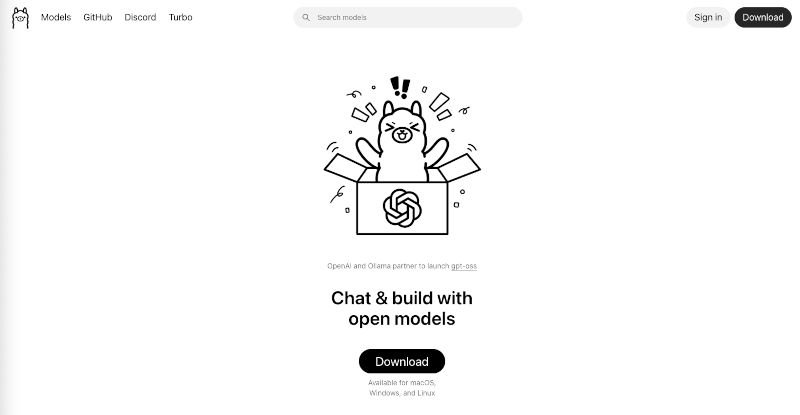
Head over to ollama.com/download and grab the installer for your operating system.
- Mac & Windows: It’s a one-click installer. Just download, double-click, and you’re good.
- Linux (and Mac terminal fans): Run the following command:
curl -fsSL https://ollama.com/install.sh | sh
Step 2: Verify Installation
Open your terminal and type:
ollama --version
If Ollama is installed correctly, it will return the current version number.
Part 3: Running Your First Model (LLaMA 3.2)
Now comes the exciting part: running your very own AI assistant.
Once Ollama is installed, all you need to do is type:
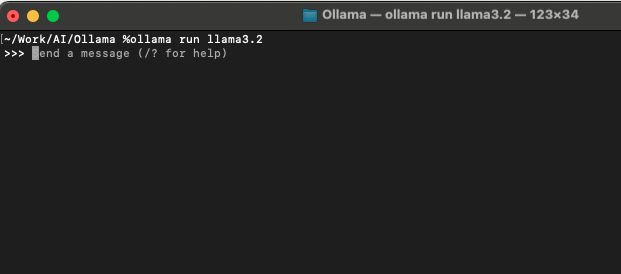
ollama run llama3.2
That’s it. Ollama will automatically download the LLaMA 3.2B model (Meta’s lightweight but powerful AI model) and launch it.
You’ll see a chat-like interface appear right in your terminal, ready to take your prompts.
Part 4: What Is LLaMA 3.2 and Why Use It?
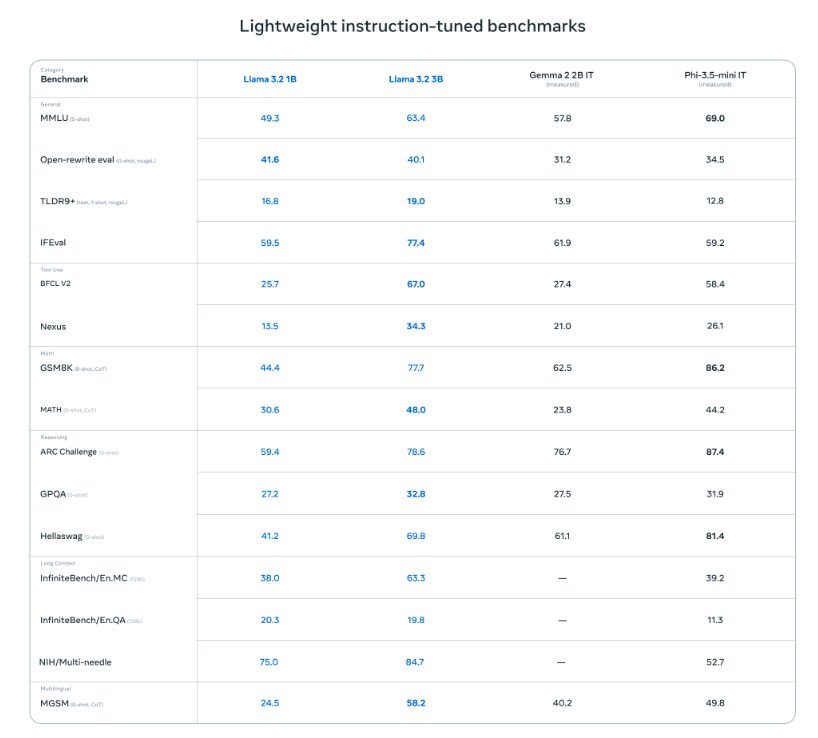
Meta’s LLaMA 3 family is one of the most popular open-source AI models today. While the giant 70B parameter model rivals GPT-4 in some benchmarks, the smaller 3.2B variant is designed for efficiency and accessibility.
Here’s why LLaMA 3.2 is ideal for local use:
- Lightweight: Can run on a regular laptop without dedicated GPUs.
- Fast: Provides near-instant responses for most queries.
- Capable: Strong at general knowledge, text generation, and reasoning.
- Open: Freely available to experiment, customize, and integrate.
Of course, it has limitations. Since it’s trained on data up to 2023, it won’t know who won the 2024 U.S. Presidential Election or the latest iPhone model. But for learning, prototyping, and everyday tasks, it’s surprisingly robust.
Part 5: Chatting With Your AI Assistant
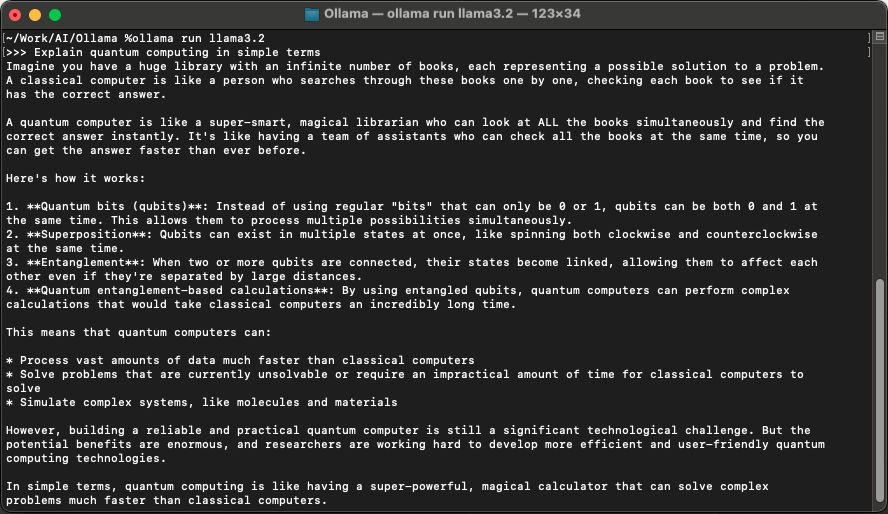
Once your model is running, you can interact with it just like ChatGPT.
For example:
You: Explain quantum computing in simple terms.
AI (LLaMA 3.2): Quantum computing is like using coins that can be heads, tails, or both at once, making certain problems faster to solve.
Or try something creative:
You: Write me a short poem about the moon.
AI:
Silent watcher in the sky,
Whispers light as night drifts by,
Faithful mirror, calm and true,
Dreams awaken under you.
And remember: none of this leaves your machine. No API keys. No subscription. Just you and your local AI.
Part 6: Why Local AI Matters
This is bigger than just a cool trick—it’s a paradigm shift.
Running AI locally means:
- Privacy: Your data stays on your device.
- Freedom: No more dependency on API tokens, internet access, or subscription tiers.
- Accessibility: Students, hobbyists, and researchers can learn and experiment with AI without breaking the bank.
- Prototyping Power: Developers can test new workflows and build AI apps quickly.
- Edge Computing Future: Imagine AI running on phones, cars, or IoT devices—this is the foundation.
Sure, smaller local models won’t replace GPT-4 overnight. But they’re the start of AI decentralization, where power shifts from centralized servers back to individuals.

Part 7: Limitations You Should Know
Before you get too excited, let’s address a few limitations:
- Knowledge Cutoff: Models like LLaMA 3.2 don’t know events after 2023.
- Smaller Scale: Don’t expect enterprise-level AI with billions of parameters.
- Hardware Limits: While efficient, performance still depends on your RAM/CPU.
But these trade-offs are worth it, especially for learning and prototyping.
Part 8: Where to Go From Here
Once you’ve set up Ollama + LLaMA 3.2, the real fun begins. Here are a few ideas:
- Learning: Use it to study AI concepts without spending a cent on APIs.
- Coding Helper: Get instant explanations for code snippets.
- Creative Writing: Generate stories, poems, or brainstorming ideas.
- Prototyping Apps: Build a chatbot or integrate the model into your own workflow.
- Offline Assistant: Travel without Wi-Fi? Your AI stays with you.

Conclusion: Your Personal AI, No Strings Attached
You don’t need supercomputers, expensive APIs, or giant cloud servers to explore AI. With Ollama and LLaMA 3, you can have your own AI assistant, right on your laptop.
It’s private. It’s fast. And it’s yours.
So, download Ollama. Run ollama run llama3.2. Ask it questions. Push its limits. Build something new.
This is the future of AI—one laptop at a time.
Pingback: Build Your Own AI Research Assistant Locally