How to Build Your Own AI Content Repurposer with n8n & Ollama — Automate Your Creativity
Introduction — The Problem Every Creator Faces
If you’ve ever spent hours creating a blog post, a YouTube video, or a podcast episode, you know the struggle: the content is great… but it only lives in one format.
You post it, people love it — and then it fades into the background, replaced by the next big thing on the internet.
But what if you could take one piece of content and, in seconds, transform it into multiple formats ready for Instagram, LinkedIn, Twitter (X), and even your newsletter?
That’s where an AI Content Repurposer comes in.
And here’s the exciting part — you don’t need to be a full-time coder to build it. With n8n (a no-code automation platform) + Ollama (a local AI model runner), you can create your own repurposing engine in under an hour.
Why This Matters in 2025
Automation isn’t just a productivity hack anymore — it’s a competitive advantage. In 2025, content creators are in a race for attention. If you can get your ideas out faster, in more formats, on more platforms, you win.
Our AI Content Repurposer will:
- Take any text (blog post, Google Doc, YouTube transcript, etc.)
- Summarize it, adapt tone, and rewrite for different audiences
- Output Instagram captions, LinkedIn posts, or even email newsletter intros instantly
- Store your repurposed content in Notion for easy scheduling

Part 1 — Understanding the Tools
Before we start building, let’s understand what we’re using:
1️⃣ n8n — The Automation Brain
Think of n8n as the central nervous system of your automation. It connects all your tools — Google Docs, Notion, APIs, AI models — and lets you visually create workflows without writing full-blown code.
- Website: https://n8n.io
- Runs locally or in the cloud
- Integrates with 300+ apps
2️⃣ Ollama — The Local AI Model Runner
Ollama lets you run powerful AI models like LLaMA 3.2 right on your computer — no need for expensive API calls to OpenAI.
- Website: https://ollama.ai
- Private & offline by default
- Supports multiple models for different tasks
3️⃣ Notion — The Content Storage Hub
Notion will be where we save all our AI-generated captions so we can schedule, edit, and post them later.
- Website: https://notion.so
- Great for collaboration and content calendars
Part 2 — How Our Workflow Will Work
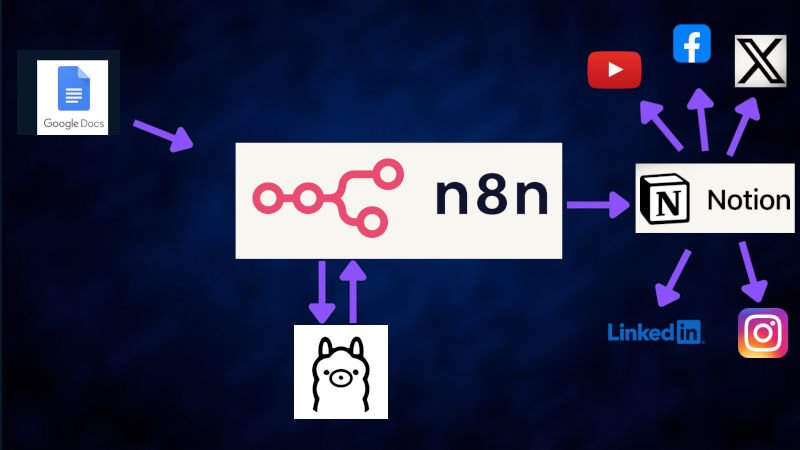
Here’s the workflow we’ll build today:
- Trigger: Receive a blog post or content source
- Google Docs Node: Fetch the content from a shared doc
- Ollama Node: Send the content to the AI model and generate a short, emotional Instagram caption
- Notion Node: Store the caption in your content calendar database
- (Optional) — Auto-schedule it to social media with Buffer or another scheduler
Part 3 — Step-by-Step Tutorial
Step 1 — Install n8n and Ollama
For n8n (Docker)
docker run -it –rm \ –name n8n \ -p 5678:5678 \ -v ~/.n8n:/home/node/.n8n \ n8nio/n8n
For Ollama
- Download from https://ollama.ai/download
- Pull the model:
ollama pull llama3.2
Step 2 — Create Your Notion Database
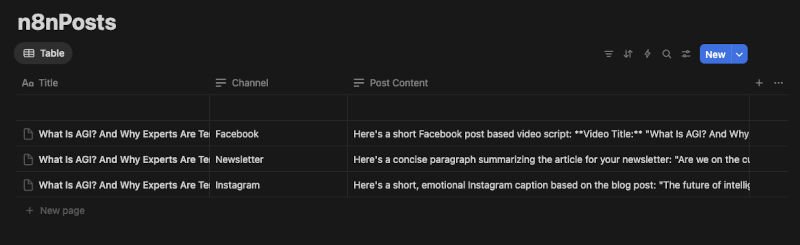
- Create a new table in Notion called “n8nPosts”
- Add columns:
- Title (Title property)
- Channel (Select: Instagram, LinkedIn, Twitter, etc.)
- PostContent (Text property)
- Share the database with your Notion integration
Step 3 — Set Up Your Google Doc
- Paste your blog post or source content into a Google Doc
- Make sure your n8n Google integration has access
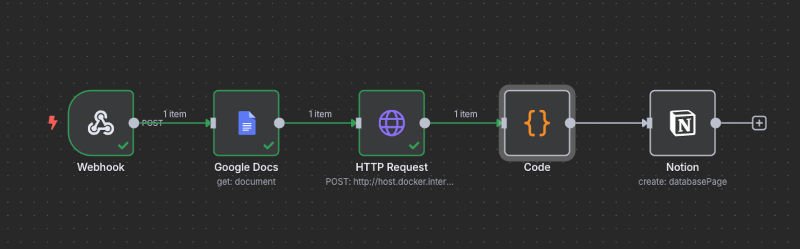
Step 4 — Build the n8n Workflow
- Trigger Node: Manual Trigger (for testing)
- Google Docs Node: Get Document Content
- Function Node: Extract the main text from JSON:
const raw = $input.first().json.data; return { json: { content: raw.body.content } }; - HTTP Request Node (Ollama):
- Method: POST
- URL: http://host.docker.internal:11434/api/generate
- Body Content Type: JSON
- Create two Body Parameters:
“model”: “llama3.2”, “prompt”: “Write a short, emotional Instagram caption based on this text:\n\n{{ $json.content }}” - Notion Node: Create Page in your “n8nPosts” database

Part 4 — Testing the Workflow
Once you hit Execute Workflow, watch the magic happen:
- Your Google Doc content gets pulled in
- Ollama generates a creative Instagram caption
- The caption is saved into your Notion database
Part 5 — Real-World Use Cases
Here are some ways you could adapt this AI Content Repurposer:
- Podcasters → Turn transcripts into tweet threads
- Educators → Turn lesson notes into Instagram carousel captions
- Marketers → Create multiple ad variants from one product description
- Authors → Turn book excerpts into social media teasers
Part 6 — Expanding the Workflow
Once you’ve got the basic flow running, here are ways to take it further:
- Add Buffer or Zapier to post automatically
- Generate multiple captions per piece of content
- Run sentiment analysis before posting
- Translate into multiple languages
Conclusion — The Future of Content Creation is Automated
This isn’t just a “cool tech experiment” — it’s the start of a new era for creators. By connecting n8n and Ollama, you’ve built a private, customizable AI-powered content repurposing system that works while you sleep.
The next step? Keep iterating. Add more platforms, more formats, and more creativity.
In a world where content moves at lightning speed, automation is your secret weapon.
Watch our video for step by step guide.