
Imagine waking up every morning to a clean, beautifully formatted summary of the latest AI news — automatically curated, summarized, and delivered straight to your inbox. No more doomscrolling. No clutter. Just pure insight.
Welcome to the future of information — where AI reads the news for you.
In this post, I’ll show you how to build your own “Daily AI-Powered News Brief” — a fully automated system powered by n8n, RSS feeds, and a local LLM (like Ollama) — to help you stay informed, productive, and creative.
By the end of this guide, you’ll not only understand how this automation works — you’ll see how AI can reshape the way we consume knowledge.

🌍 Why Build an AI News Brief in 2025?
We’re living in an era where information moves faster than attention. Every hour, thousands of stories are published across the web. But how do you filter what truly matters?
Sure, you could subscribe to newsletters or scroll through feeds.
But what if you could build your own personal AI curator — one that:
- Fetches the latest updates from trusted sources,
- Summarizes the key stories in human-like language,
- Sends you a neat digest email every morning — while you’re still having coffee. ☕
That’s the essence of this project.
⚙️ What You’ll Build
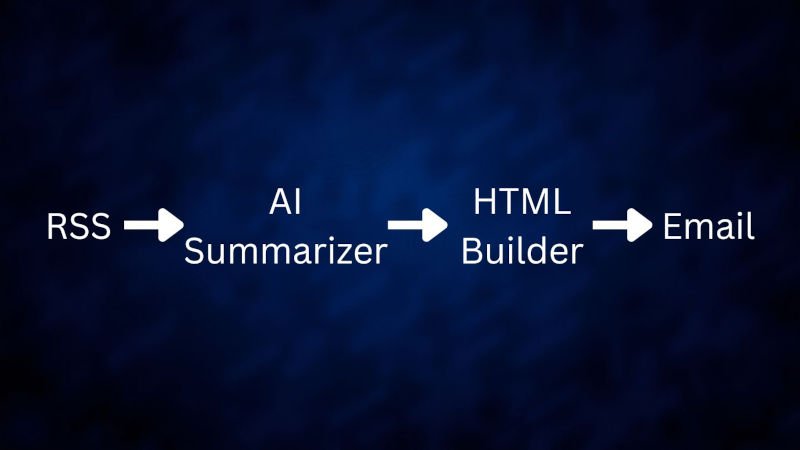
We’ll create a Daily AI-Powered News Brief automation that:
- Collects news from multiple RSS feeds.
- Summarizes them using a local AI model (like Llama 3, Gemma, or Mistral, running via Ollama).
- Merges the summaries into a single formatted HTML newsletter.
- Emails the digest automatically every morning.
Think of it as your AI editor-in-chief — who never sleeps.
🧩 Technologies You’ll Use
Let’s break down the tech stack:
| Tool | Purpose |
|---|---|
| n8n | The automation engine that connects everything together. |
| RSS Feeds | Fetches news articles from top AI and tech sites. |
| Ollama (Local LLM) | Summarizes the articles in natural language. |
| HTML Template | Formats the summary beautifully for email. |
| Gmail Node (or SMTP) | Sends the final daily digest directly to your inbox. |
🧠 Step-by-Step Guide: How It Works
🥇 Step 1: Set Up n8n
If you haven’t used n8n before, it’s an open-source automation tool — think of it like a “visual programming” environment for creators and developers.
You can:
- Run it locally using Docker (https://clytheravox.com/how-to-run-ai-locally-set-up-ollama/ )
- Use the n8n cloud version
- Or host it on your server (https://clytheravox.com/how-to-use-n8n-for-ai-automation-turn-google-sheets-gmail-into-smart-assistants/)
Once set up, open the n8n editor — your creative playground for building AI workflows.
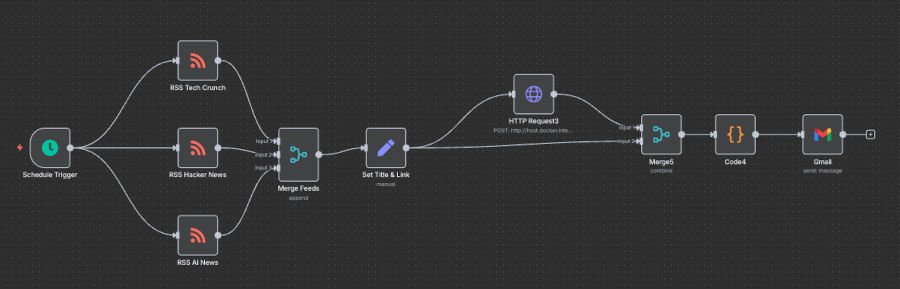
First add a Schedule Node Trigger.
📰 Step 2: Fetch News Using RSS Feeds
Now, let’s connect to the world.
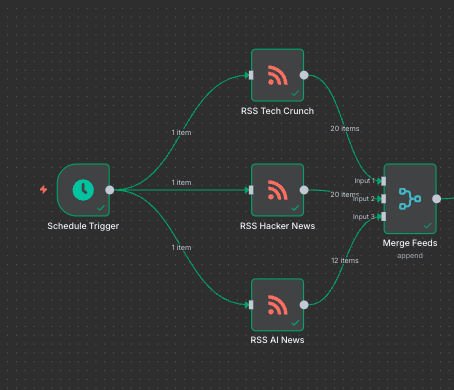
Add multiple RSS Feed nodes to your workflow. Each one pulls the latest articles from a source you trust.
Here are a few good ones that we are going to use:
- Tech Crunch ( https://techcrunch.com/feed/)
- The Hacker News (https://hnrss.org/frontpage)
- AI News (https://www.artificialintelligence-news.com/feed/)
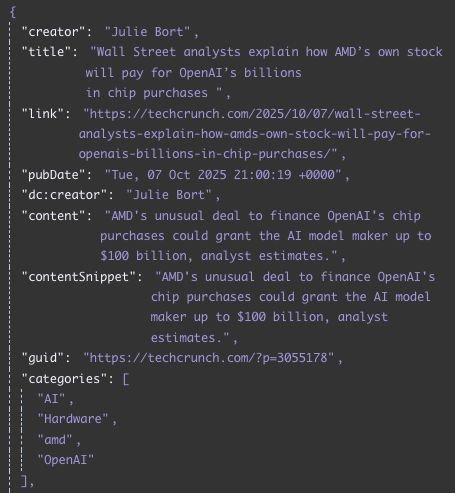
Each feed gives you a stream of new articles — title, link, and content snippet.
Now merge the feeds together using Merge Node.
🤖 Step 3: Summarize Articles with AI (Ollama Node)
This is where the magic happens.
Before we send the content to the Ollama Node, we keep the Title, Link and content in a Set Node.
Then, send that data into your Ollama node (or OpenAI/Gemini node if you prefer).
Prompt the model with something like:
Summarize the following article in 2–3 sentences. Output only the summary. Do not preface your answer with anything.
{{$json["content"]}}
Each AI model will return beautifully written summaries.
You can even add emojis, section headers, or tags if you want to give the digest personality.
🧩 Step 4: Combine Your Digest (Merge Node)
Once all your sources are summarized, you’ll want to merge them into a single email.
Use the Merge Node in “Combine” mode to combine the summary with the information we stored in Set Node.
💌 Step 5: Design the Email (HTML Template)
This step is where creativity meets tech.
Use a Code Node to combine all the News items together and design your newsletter body with HTML.
const allItems = $input.all();
let htmlOutput = '';

for (const item of allItems) {
  const title = item.json.title || 'Untitled';
  const link = item.json.link || '';
  const raw = item.json.data;
  const lines = raw.trim().split('\n');

  let summary = '';
  for (const line of lines) {
    try {
      const obj = JSON.parse(line);
      if (obj.response) {
        let text = obj.response.trim();

        // Remove boilerplate
        text = text.replace(/^Here is a summary.*?:\s*/i, '');
        summary += text + ' ';
      }
    } catch (e) {
      // skip malformed lines
    }
  }

  htmlOutput += `
    <div style="margin-bottom: 30px; font-family: Arial, sans-serif;">
      <h2 style="font-size: 18px; color: #333;">📰 ${title}</h2>
      <p style="font-size: 14px; color: #555;">${summary.trim()}</p>
      <p><a href="${link}" style="color: #1a73e8;">🔗 Read more</a></p>
      <hr style="border: none; border-top: 1px solid #ccc;" />
    </div>
  `;
}

return [
  {
    json: {
      subject: '🧠 Daily AI Digest',
      html: `
        <html>
        <body style="font-family: Arial, sans-serif; padding: 20px; background-color: #f9f9f9;">
          <h1 style="font-size: 24px; color: #222;">🗞️ Your Daily AI Brief</h1>
          ${htmlOutput}
          <p style="font-size: 12px; color: #999;">Sent by your automated AI workflow</p>
        </body>
        </html>
      `
    }
  }
];
Now you’ve got one unified block of HTML — your personalized news brief.
💡 Design Tip:
You can embed your logo, add section dividers, or even use inline CSS for a professional touch.
📧 Step 6: Send the Email Automatically
Finally, add the Gmail node (or SMTP) and connect it to your email account.
Use the following settings:
- To: your email (or multiple recipients)
- Subject:
Daily AI Update 🗞️ - Body: HTML output from your Code Node
Schedule the workflow to run every morning (say, 7 AM).
That’s it — your AI assistant is now officially a daily news editor.
🔍 Step 7: Add Optional Enhancements
Once your system works, let’s level it up.
Here are a few futuristic ideas:
✅ 1. Add Analytics
Use Bitly or Rebrandly API to shorten and track your links.
That way, you can see which stories your readers actually click.
✅ 2. Integrate with Notion or Google Docs
Save the daily summary automatically to a Notion database or Google Doc.
Perfect for creators who want to archive their AI knowledge over time.
✅ 3. Send to Telegram or Discord
Why limit it to email?
You can post the same AI brief to your Telegram channel, Slack, or Discord group for your community.
✅ 4. Use Sentiment or Topic Analysis
Feed the summaries back into the AI model to extract sentiment, keywords, or topics.
This could even evolve into a personalized AI insight dashboard.
🧠 The Bigger Picture
This project is more than just automation — it’s a step toward AI-assisted knowledge consumption.
In a world overloaded with content, the next competitive advantage isn’t who knows more — it’s who can distill faster.
By teaching machines to read, summarize, and curate, you’re not just saving time — you’re amplifying your curiosity.

🚀 The Future: Personalized AI Research Assistants
Imagine expanding this concept:
- Your AI reads dozens of specialized sources every day.
- Summarizes the top insights relevant to your field.
- Emails you — or speaks to you via a voice assistant — over coffee.
That’s the near future of personal intelligence augmentation.
And the best part?
You don’t need massive infrastructure.
You just need curiosity, creativity — and a few powerful open-source tools.
📈 What You’ve Learned
By now, you’ve learned how to:
- Build a custom AI-powered newsletter using n8n + Ollama
- Automate your daily news discovery
- Format and send professional HTML emails
- Expand with analytics, Notion syncs, and multi-platform sharing
Your Daily AI-Powered News Brief isn’t just a project — it’s a new way of thinking about information.
✨ Final Thoughts
This project embodies what I love most about the intersection of AI and automation:
Creativity empowered by intelligence.
So go ahead — build your AI journalist.
Let it do the reading while you focus on the learning.
And the next time someone says, “How do you keep up with all this AI stuff?”
You’ll just smile and say,
“I have an AI for that.” 🤖
Watch our video: