
Artificial Intelligence is often described as complex, intimidating, and reserved for people who understand neural networks, massive datasets, and lines of code that look like ancient spells. But what if you could teach an AI something visually — right in your browser — without writing a single line of code?
Even better… what if the AI could learn to recognize something you’re already familiar with, like Rock, Paper, and Scissors?
In this blog post, I’ll take you through a step-by-step journey of training a real AI model using Google’s Teachable Machine — the easiest and most interactive way to understand how machine learning actually works.
Whether you’re a student, a beginner, a tech enthusiast, or a professional curious about the inner workings of AI, this is one of the most fun and eye-opening projects you can try.
Let’s dive in.
## Why This Project Is So Fascinating
Think of this experiment as giving a machine a pair of eyes and teaching it to understand what it “sees.”
Not every AI tutorial gives you instant feedback.
Not every AI course shows you visually how a model gets smarter with every second of training.
But Teachable Machine does.
You literally watch AI study your hand gestures, graph its own learning progress, and finally — correctly guess what gesture you’re showing it.
It’s the closest thing to seeing a machine “think.”
And the best part? You can do all of it in minutes.
🧩 What You’ll Learn in This Project
By the end of this blog, you’ll understand:
✔ How AI collects data
✔ How it “learns” patterns
✔ What epochs, accuracy, and loss really mean
✔ Why models get confused
✔ How to test and improve your AI
✔ How you can export the model to use elsewhere
This is a hands-on introduction to practical AI — simple enough for beginners, powerful enough for professionals, and fun enough for everyone.
🧭 Tools We’re Using
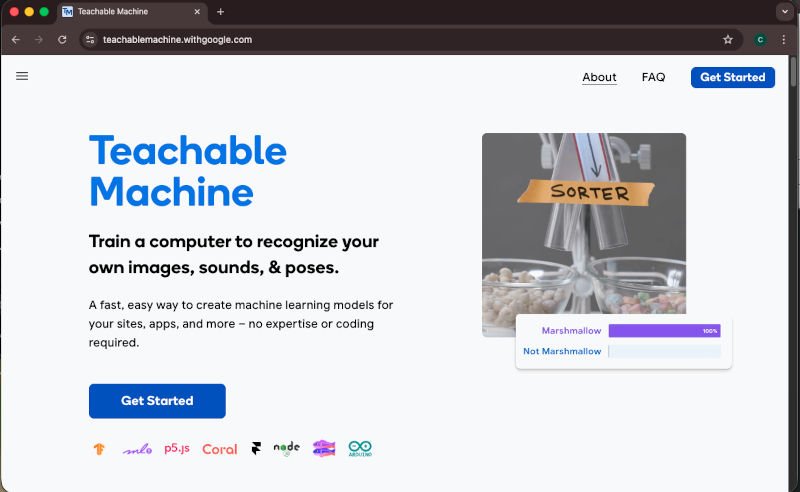
- Google Teachable Machine (free, web-based)
- Your webcam
- Your hands (Rock, Paper, Scissors!)
- A modern browser (Chrome, Safari, Edge — anything works)
No installations.
No Python.
No complicated frameworks.
Just pure interactive AI learning.
# Step 1: Understanding the Big Idea — How AI Learns Images
Most modern image-recognition systems use something called a Convolutional Neural Network (CNN).
Don’t worry — you don’t need to know how the math works.
But you should know how it thinks:
🧠 A CNN looks for patterns.
Angles, edges, textures, colors, shapes.
🧩 It learns by seeing examples.
Just like a child learns what a cat is by seeing many pictures of cats.
👀 The more varied the data, the smarter it becomes.
Different lighting, angles, backgrounds — all help.
Teachable Machine simplifies everything by turning this concept into a visual, interactive experience.
# Step 2: Creating Your Dataset (Rock, Paper, Scissors)
This is the fun part — you’re literally the “data.”
Open Teachable Machine → Create a new Image Project → Choose Standard Image Model.
You’ll see three empty classes. Rename them:
- Class 1 → Rock
- Class 2 → Paper
- Class 3 → Scissors
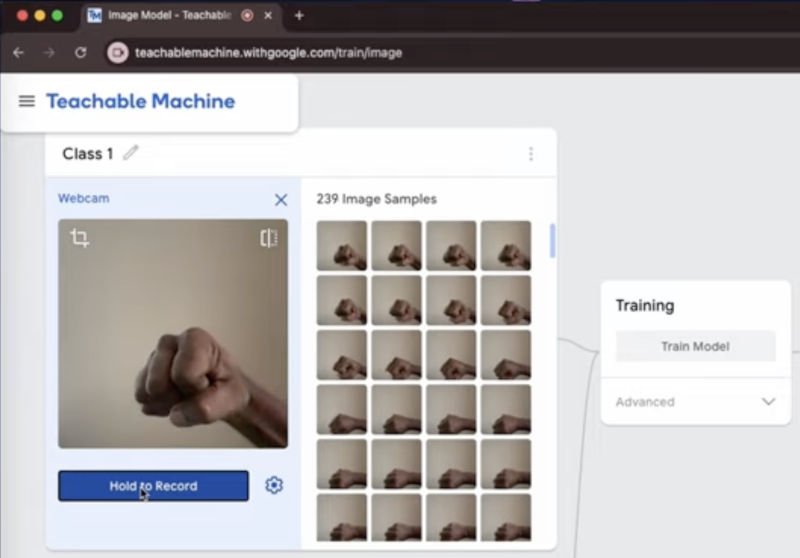
Now click each one and record your sample data.
🎥 Tip: Record 10–15 seconds for each gesture.
The tool automatically breaks that into hundreds of static images.
🎯 Why your samples matter:
AI learns from variation. So try:
- Different angles
- Different distances
- Different fingers (slightly curled or extended)
- Different lighting
- Slight movement
The more variety you give, the more realistic your model becomes.
# Step 3: Training the Model — Watching the AI Learn
This is where the magic happens.
You’ve collected data.
You’ve labeled the classes.
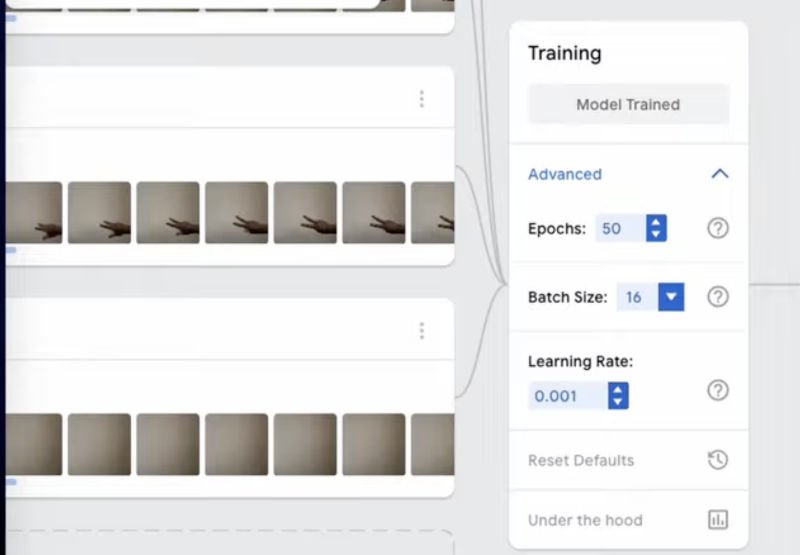
Now click Train Model.
As training begins, Teachable Machine shows you:
🔄 Epochs
An “epoch” means the model has gone through your entire dataset once.
More epochs = more time to learn.
📉 Loss
This number tells you how many mistakes the AI is making internally.
Lower = better.
📈 Accuracy
This tells you how often the model is getting predictions right.
Higher = better.
Watching these numbers change in real time feels alive, almost like watching a student improve as they study.
# Step 4: The Confusion Matrix — A Simple Explanation
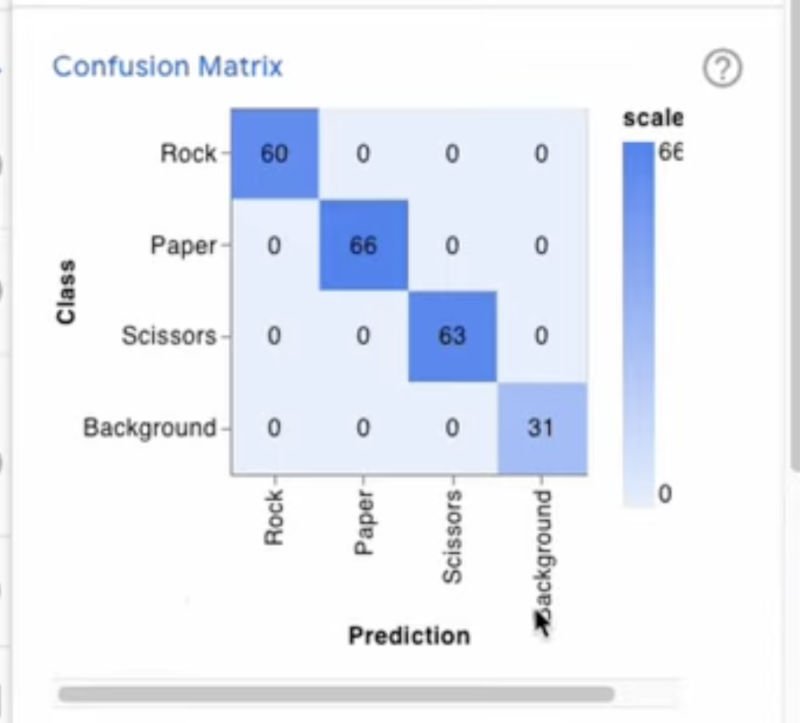
After training, Teachable Machine shows you a Confusion Matrix.
It sounds complicated, but it’s not.
It simply compares:
Actual Gesture vs. Model’s Prediction
For example:
| Actual | Predicted | Meaning |
|---|---|---|
| Rock | Rock | ✔ Good — Correct prediction |
| Rock | Paper | ✖ Confused — Needs improvement |
The Confusion Matrix is your AI’s report card.
If the model is confusing Rock and Paper, maybe your gestures weren’t clear — or you need more varied samples.
# Step 5: Testing the Model — The “Magic Moment”
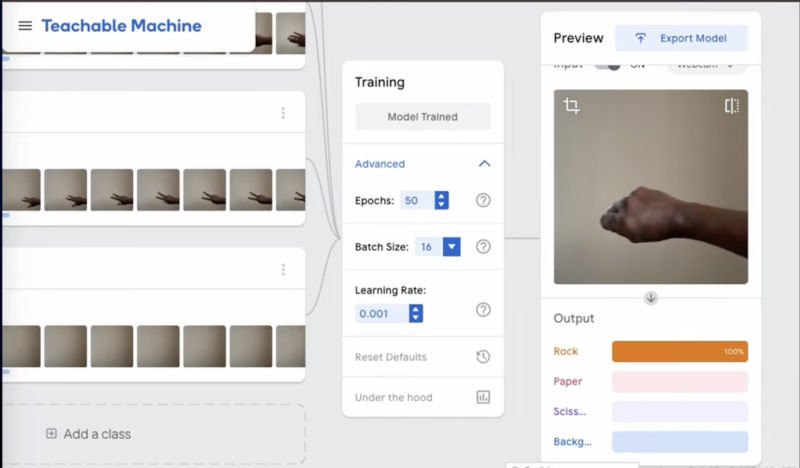
Click Preview and hold your hand in front of the webcam.
The model will instantly tell you:
- “Rock detected”
- “Paper detected”
- “Scissors detected”
This part always feels magical — because you’re watching a model think and respond in real time.
Try tricking your AI:
- Move your hand sideways
- Add slight motion
- Test with different lighting
- Use different fingers
- Try unconventional shapes
You’ll quickly see what the model understands well — and where it struggles.
# Step 6: Improving Your Model
If your model isn’t performing as well as you’d like, here are some improvements:
✔ Add more samples
Especially for gestures it confuses.
✔ Add diverse conditions
Backlight, shadows, different angles.
✔ Keep the background consistent
This helps avoid learning noise.
✔ Increase epochs
More study → better learning.
With every iteration, you’re becoming the AI’s teacher.
# Step 7: Exporting Your Model — Bring It to Life!
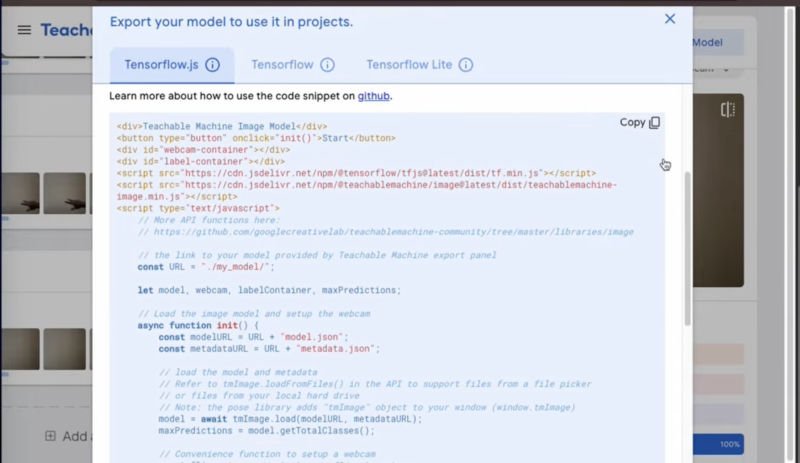
Once you’re happy with the model, Teachable Machine lets you export it as:
- TensorFlow.js
- TensorFlow Lite
- or even a Web App template
This means you can:
- Embed it into a website
- Use it in a mobile app
- Create an interactive browser game
- Build a robot that plays Rock-Paper-Scissors
The possibilities are endless.
# The Big Picture: Why This Small Project Matters
Although this is a beginner project, it mirrors what real-world AI systems do:
🚗 Self-driving cars
Learn from millions of images of roads, signs, pedestrians.
🩺 Medical diagnostic AI
Learns to identify tumors from X-ray or MRI images.
📱 Face unlock on your phone
Learns to identify your facial patterns.
🤖 Robotics
Learns to detect obstacles and navigate spaces.
Your Rock-Paper-Scissors model uses the same principles.
You’re interacting with the underlying mechanics of computer vision — in the simplest, most visual, most enjoyable form possible.
And now… you understand how AI learns.
🧠 Final Thoughts
Training an AI model doesn’t have to be overwhelming, confusing, or reserved for experts.
With tools like Google Teachable Machine, AI becomes playful — something you can touch, see, interact with, and understand intuitively.
You just taught a machine to recognize your hand gestures.
That’s huge.
Imagine what else you could train it to recognize:
- Emotions
- Plants
- Yoga poses
- Types of food
- Handwritten letters
- Household objects
The future of learning AI is not just about code — it’s about creativity.
And now, you’re part of that creative future.
Watch our Video: